Transform your DayZ server with mods using our seamless Steam Workshop integration. This guide explains how to install and manage DayZ mods, why we chose Steam Workshop, and best practices for server customization.
Understanding DayZ Mod Management
DayZ has a thriving modding community with thousands of mods available on Steam Workshop. From quality-of-life improvements to complete gameplay overhauls, mods can dramatically enhance your server's unique identity.
Why Steam Workshop Integration?
We integrated directly with Steam Workshop for several critical reasons:
🎯 The Power of Steam Workshop
Automatic Updates: Mods update automatically through Steam, ensuring compatibility with the latest DayZ version.
Centralized Repository: All DayZ mods are hosted on Steam Workshop, making discovery and installation simple.
Version Management: Steam handles mod versioning and dependencies automatically.
Community Ratings: See mod popularity and quality through Steam's rating system before installing.
Benefits of Steam Workshop Integration
- One-Click Installation: Add mods using just the Workshop ID - no manual downloads
- Automatic Updates: Mods stay current with the latest DayZ patches automatically
- Dependency Resolution: Steam Workshop handles mod dependencies for you
- No Storage Limits: Install as many compatible mods as your server can handle
- Easy Discovery: Browse thousands of mods directly on Steam Workshop
- Community Vetted: See ratings, comments, and compatibility notes from other server owners
- Instant Removal: Remove mods by deleting their Workshop ID from your server settings
- Client Compatibility: Players automatically download required mods when joining
How Steam Workshop Integration Works
Installation Process
When you add a Workshop ID to your server configuration:
- Steam Login: Server authenticates with Steam using anonymous login or your credentials
- Download: SteamCMD downloads the mod directly from Steam Workshop
- Installation: Mod files are placed in the correct directories automatically
- Server Configuration: Server startup parameters are updated to load the mod
- Client Notification: Joining players are notified of required mods
Mod Loading Order
DayZ loads mods in the order specified in your configuration. This matters for mods that modify the same content:
- Base Mods First: Framework mods (DayZ-Expansion, CF) should load before dependent mods
- Content Mods: Weapon packs, vehicles, and clothing mods load after frameworks
- Overrides Last: Mods that modify base game files should load last
Finding and Installing Mods
Step 1: Browsing Steam Workshop
Find DayZ mods on Steam Workshop:
- Open Steam client or visit Steam Workshop - DayZ
- Use search filters: Most Popular, Most Subscribed, Recent
- Read mod descriptions for compatibility information
- Check ratings and comments for quality feedback
- Look for "Server-Side" tag for server-only mods
Step 2: Getting Workshop IDs
Every Steam Workshop mod has a unique ID number:
Method 1: From Workshop Page URL
Workshop URL: https://steamcommunity.com/sharedfiles/filedetails/?id=1559212036
Workshop ID: 1559212036

The ID is the number after "?id=" in the URL
Method 2: From Mod Subscribe Button
- Click "Subscribe" on the mod page
- Right-click the mod in your Steam Workshop subscriptions
- Select "Copy Page URL"
- Extract the ID number from the URL
⚠️ Workshop ID Format
Always use just the numeric ID (e.g., 1559212036), not the full URL. Multiple mods should be separated by semicolons in your server configuration: 1559212036;1565871491;2116151222
Step 3: Installing via OCN Panel
There are three ways to add mods to your DayZ server:
Method 1: Using Modlist File (Recommended for Beginners)
- Open DayZ Launcher on your PC
- Create your mod collection in the launcher
- Export the modlist: Click "Export" and save as HTML file
- Upload the
modlist.htmlfile to your server's root directory via Files tab - In the Startup tab, find "Modlist File" variable
- Enter the filename:
modlist.html - Restart server - mods will auto-download and load
Method 2: Additional Mods (Manual Workshop IDs)
- Log into your OCN Panel at panel.ocnetworks.co.uk
- Navigate to your DayZ server and click Startup tab
- Find the "Additional Mods" variable
- Enter Workshop IDs in
@workshopIDformat, separated by semicolons - Example:
@1559212036;@2116151222;@1565871491 - Click Restart Server to download and load mods
- Monitor the console for download progress
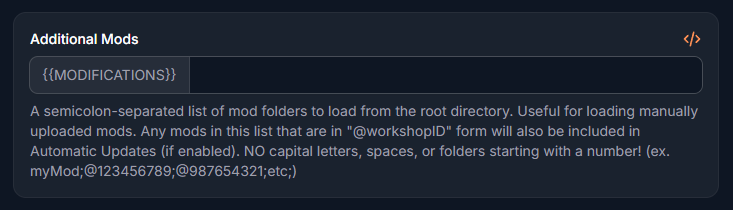
Additional Mods field for manually uploaded mods or Workshop IDs
Method 3: Server-Side Only Mods
- In the Startup tab, find "Server-Side Only Mods" variable
- Enter Workshop IDs for mods that only run server-side (admin tools, etc.)
- Format:
@1559212036;@2143128974(semicolon-separated) - These mods don't require clients to download if "Verify Signatures" is ON
- Restart server to apply changes
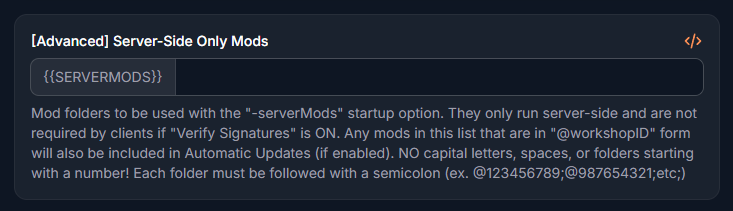
[Advanced] Server-Side Only Mods field for admin tools and server-only modifications
⚠️ Important Mod Naming Rules
NO capital letters, spaces, or folders starting with numbers!
✅ Correct: @1559212036;@myMod;@customContent
❌ Wrong: @MyMod;@Custom Content;@123mod
Step 4: Configure Mod Settings
Automatic Updates (Startup Tab):
- Set to 1 (ON) to automatically update mods and server on restart
- Set to 0 (OFF) to disable automatic updates (manual control)
- Recommended: Keep ON for seamless mod updates
Verify Signatures (Startup Tab):
- Set to 2 (ON) - Clients must have exact same mod versions as server
- Set to 0 (OFF) - Allows clients without mods to join (not recommended)
- Server-side only mods bypass this check when set to 2
Step 5: Verify Installation
- Check server console for "Loading mod: ModName" messages
- Go to Files tab and look for mod folders in root directory
- Verify mod folders exist (named @workshopID or custom names)
- Join your server and check if mod content appears in-game
- Use F11 debug menu to see loaded mods list
Popular DayZ Mods to Try
Essential Framework Mods
DayZ-Expansion (Workshop ID: 2116151222)
- Type: Core framework and content expansion
- Features: Base building, helicopters, missions, trader system
- Compatibility: Required by many other mods
- Player Base: Most popular DayZ mod framework
- Note: Install this before expansion-dependent mods
Community Framework (CF) (Workshop ID: 1559212036)
- Type: Developer framework
- Features: Core utilities for mod development
- Compatibility: Required by many advanced mods
- Player Base: Standard for modded servers
- Note: Load this first if using CF-dependent mods
Content Expansion Mods
Weapons & Combat
- Mass'sManyItemOverhaul: Hundreds of new weapons, attachments, and equipment
- Advanced Weapon Scopes: Realistic weapon optics and ballistics
- MunghardsItempack: Modern military weapons and gear
- KA Weapons: High-quality weapon models and animations
Vehicles & Transport
- Expansion Vehicles: Helicopters, boats, and advanced ground vehicles
- Car Expansion: Additional civilian and military vehicles
- Kart Krew Racing: Go-karts and racing content
- Helicopters: Various flyable helicopter models
Base Building & Crafting
- BuildAnywhere: Remove building restrictions
- BaseBuildingPlus (BBP): Expanded building pieces and options
- Code Lock: Secure bases with combination locks
- Advanced Groups: Group management and permissions
Quality of Life Mods
UI & Interface
- DayZ Editor: In-game map editor for admins
- Trader: NPC trading system
- Party Me: Enhanced group/party system
- DNA Keycards: Electronic access control
Gameplay Enhancement
- Stamina Overhaul: Improved stamina system
- Medical Attention: Realistic medical mechanics
- Bed Respawning: Set custom spawn points
- Vehicle Covers: Hide vehicles with camo netting
Server Management & Admin Tools
- VPPAdminTools: Comprehensive admin menu and tools
- Community Online Tools (COT): Server management utilities
- Dabs Framework: Advanced admin capabilities
- Server Information Panel: Display server rules and info
Mod Configuration
Server-Side Configuration Files
Many mods create configuration files in your server directory:
/mpmissions/dayzOffline.chernarusplus/
/profiles/ExpansionMod/Settings/
/profiles/VPPAdminTools/
/profiles/CF/
Editing Mod Configs via Pelican
- Go to Files tab in Pelican panel
- Navigate to the mod's config directory
- Click on .json or .xml config files to edit
- Make your changes (JSON format is strict - validate syntax)
- Click Save File
- Restart server to apply changes
Common Configuration Examples
DayZ-Expansion Trader Settings
{
    "TraderEnabled": 1,
    "TraderCurrencyName": "Rubles",
    "ATMPlayerTransferEnabled": 1,
    "ATMMaxDepositMoney": 100000000
}
Base Building Restrictions
{
    "AllowBuildAnywhere": true,
    "MaxBuildHeight": 50,
    "RestrictedZones": []
}
Managing Mod Load Order
Understanding Mod Dependencies
Some mods require other mods to function. Common dependency chains:
Framework Mods (load first):
1. Community Framework (CF)
2. DayZ-Expansion Core

Dependent Mods (load after frameworks):
3. Expansion Vehicles
4. Expansion Base Building
5. Expansion Missions

Content Mods (load last):
6. Weapon packs
7. Clothing mods
8. Custom items
Setting Load Order in Pelican
List Workshop IDs in the order you want mods to load:
Workshop Mod IDs: 1559212036;2116151222;2291785308;1565871491

This loads:
1. Community Framework (1559212036)
2. DayZ-Expansion (2116151222)
3. Expansion Vehicles (2291785308)
4. Trader Mod (1565871491)
Troubleshooting Mod Issues
Mods Won't Download
- Check Workshop ID: Verify the ID is correct (numbers only, no URLs)
- Steam Authentication: Ensure server has Steam access (check console for errors)
- Workshop Status: Check if mod is still available on Workshop (not removed by author)
- Disk Space: Ensure server has enough free space for mod downloads
- Network Issues: Check server console for connection errors to Steam
Server Won't Start After Adding Mods
- Mod Compatibility: Check mod Workshop pages for DayZ version compatibility
- Conflicting Mods: Some mods modify the same files and conflict
- Missing Dependencies: Install required framework mods first (CF, Expansion Core)
- Load Order: Ensure framework mods load before dependent mods
- Corrupted Download: Remove mod ID, restart, then re-add to force re-download
Mods Not Loading In-Game
- Verify Console: Check for "Loading mod: ModName" messages in server console
- Client Mods: Some mods require players to subscribe on Steam Workshop
- Server Restart: Always restart server after changing mod configuration
- File Permissions: Ensure server has read/write access to mod directories
- Mod Keys: Check
/keys/folder for mod .bikey files - Case Sensitivity: Linux servers are case-sensitive - use "Make Mod Files Lowercase" repair option
Fixing Case-Sensitive File Issues
If mods copied from Windows show errors about missing files:
- Go to Startup tab in OCN Panel
- Find "[Repair] Make Mod Files Lowercase" variable
- Set to 1 (ON)
- Restart server once - all mod folders/files will be converted to lowercase
- Set back to 0 (OFF) after one boot
- This fixes Linux case-sensitivity issues with Windows-created mods
Performance Issues After Modding
- Resource Usage: Large mod collections need more RAM (8GB+ recommended)
- Entity Limits: Reduce max zombies/animals in serverDZ.cfg
- View Distance: Lower network bubble and view distance settings
- Mod Optimization: Remove unused mods to reduce server load
- Contact Support: We can help optimize server settings for heavy modding
Best Practices
Before Installing Mods
- Backup Your Server: Use Pelican's backup feature before major mod changes
- Read Mod Documentation: Check Workshop descriptions for requirements and known issues
- Test Compatibility: Research mod combinations in community forums
- Check Dependencies: Install required framework mods first
- Plan Server Theme: Choose mods that fit your server's playstyle (PvP, PvE, RP)
Mod Management
- Document Installed Mods: Keep a list of Workshop IDs and mod names
- Monitor Updates: Subscribe to mods on Steam to get update notifications
- Test Major Updates: When mods update, test before applying to live server
- Regular Backups: Backup before any mod changes
- Player Communication: Inform players before adding/removing mods (may require client re-download)
Performance Optimization
- Start Small: Add a few mods at a time to monitor performance impact
- Remove Unused: Uninstall mods you're not actively using
- Framework Overlap: Don't install multiple framework mods (choose CF or Expansion, not both)
- Monitor Server Load: Use Pelican's performance graphs
- Upgrade Resources: Heavy modding may require RAM/CPU upgrades
Popular Mod Combinations
PvE Survival Server
Add to "Additional Mods" field in Startup tab:
@1559212036;@2116151222;@2291785308;@2116157322;@1565871491;@1646187754Mods included:
- @1559212036 - Community Framework
- @2116151222 - DayZ-Expansion Core
- @2291785308 - Expansion Vehicles
- @2116157322 - Expansion Base Building
- @1565871491 - Trader Mod
- @1646187754 - BuildAnywhere
PvP Combat Server
Add to "Additional Mods" field:
@1559212036;@1827326581;@1623711988;@2291785308;@1828439124;@2066825719Mods included:
- @1559212036 - Community Framework
- @1827326581 - Mass'sManyItemOverhaul
- @1623711988 - Advanced Weapon Scopes
- @2291785308 - Expansion Vehicles
- @1828439124 - Medical Attention
- @2066825719 - Bed Respawning
Roleplay Server
Client Mods (Additional Mods):
@2116151222;@1565871491;@1646187754;@2127434089;@1832448183Server-Side Only Mods:
@2143128974Mods included:
- @2116151222 - DayZ-Expansion (full suite)
- @1565871491 - Trader System
- @1646187754 - BuildAnywhere
- @2127434089 - Advanced Groups
- @1832448183 - DNA Keycards
- @2143128974 - VPPAdminTools (server-side only)
Vanilla+ Server (Light Mods)
Add to "Additional Mods" field:
@1559212036;@2127434089;@2066825719;@1646187754;@1832448183Mods included:
- @1559212036 - Community Framework
- @2127434089 - Advanced Groups
- @2066825719 - Bed Respawning
- @1646187754 - BuildAnywhere
- @1832448183 - Code Lock
Advanced Mod Management
Manual Mod Installation (Advanced Users)
For mods not on Workshop or custom mods:
- Download mod files from external source
- In OCN Panel Files tab, create folder in root directory:
@modname(lowercase, no spaces!) - Upload mod files via file manager or SFTP
- Go to Startup tab, find "Additional Mods" variable
- Add your custom mod folder name:
@modname - If adding multiple:
@modname;@anothermods;@thirdmod(semicolon-separated) - Restart server
⚠️ Custom Mod Folder Rules
All custom mod folders must follow these rules:
✅ Start with @ symbol
✅ Use lowercase letters only
✅ No spaces (use underscores or camelCase)
✅ Cannot start with a number
Example: @myCustomMod, @server_tools, @enhanced_loot
Creating Custom Mod Packs
- Combine compatible mods into a server theme
- Document all Workshop IDs and load order
- Configure mod settings for balanced gameplay
- Create server rules documentation for players
- Test extensively before public release
Mod Resources
Finding Mods
- Steam Workshop: Official DayZ Workshop
- DayZ Forums: Modding discussions
- DayZ Mod Reddit: r/dayzservers for mod recommendations
- YouTube: Search "DayZ server mods" for showcase videos
Modding Communities
- DayZ Modding Discord: Official modding community
- Expansion Mod Discord: Support for DayZ-Expansion
- Server Owner Forums: Share experiences with other admins
Learning Resources
- DayZ Modding Wiki: Official documentation
- Enforce Script Tutorials: Learn DayZ scripting
- Community Guides: Workshop mod configuration tutorials
Why We Support Steam Workshop
✅ Our Commitment to Simplicity
We integrated Steam Workshop because it provides the best experience for DayZ server owners. No manual downloads, no file transfers, no complicated installations.
This approach is:
- Automated: Mods download and update automatically
- Reliable: Steam's CDN ensures fast, stable downloads
- Simple: Just enter Workshop IDs and restart
- Compatible: Works with all Workshop mods seamlessly
Need Help?
Our support team has extensive DayZ modding experience:
- Live Chat: Available 24/7 in client area
- Email Support: support@ocnetworks.co.uk
- Discord Community: Join for mod recommendations
- Mod Setup Service: We can configure complex mod setups
Next Steps
Enhance your DayZ server further:
- Server Configuration: Optimize loot tables and gameplay settings
- Performance Tuning: Adjust resources for modded gameplay
- Community Building: Promote your modded server
- Custom Events: Create unique experiences with mods
Ready to Transform Your Server? Browse Steam Workshop, choose your mods, and follow this installation guide. Need mod recommendations? Contact our support team!