This comprehensive guide will walk you through configuring your DayZ server using the OCN Panel. From basic server settings to advanced performance optimization, this article covers everything you need to create the perfect DayZ environment for your community.
Basic Server Configuration
Start with these essential settings to get your server up and running:
Server Identity
- Server Name: Set a unique, memorable name that players will see in the server browser
- Description: Add server rules, features, or welcome messages
- Message of the Day: Display important information to connecting players
- Admin Contact: Provide Discord, website, or community hub link
Server Settings
- Max Players: Set your player limit (default: 60, adjust based on your RAM - typically 20-80 players)
- Mission: Select your map (Chernarus, Livonia, or custom maps like Deer Isle, Namalsk)
- Perspective: Choose 1st Person Only, 3rd Person, or Both
- Time Acceleration: Adjust day/night cycle speed
- Server Password: Optional password protection for private servers
Performance Settings
- Network Tick Rate: Server update frequency (higher = smoother but more CPU intensive)
- AI Count: Number of infected/zombies (reduce for better performance)
- Loot Spawn Settings: Control loot density and respawn rates
Startup Parameters
The startup parameters section allows you to customize server behavior with command-line arguments. These are configured in the Startup tab of your control panel.
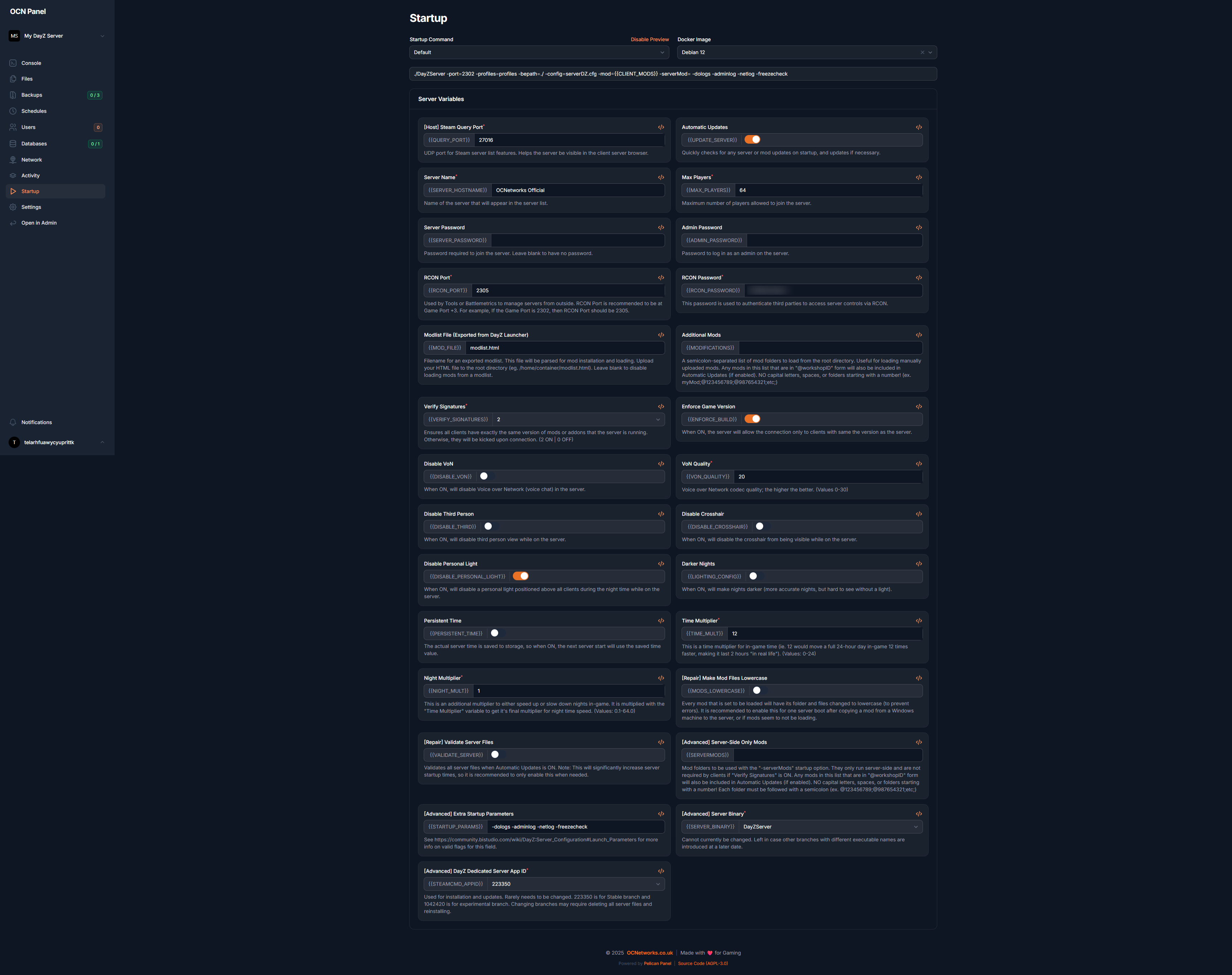
Startup configuration tab showing server control, environment variables, and advanced settings
💡 Startup Tab Overview: The Startup section in OCN Panel gives you complete control over your DayZ server's startup behavior, including server commands, environment variables, Docker configuration, CPU and RAM limits, disk space allocation, and I/O performance settings.
Essential Startup Parameters
-port=2302 -config=serverDZ.cfg -profiles=profiles -dologs -adminlog -netlog -freezecheck -BEpath=battleye -cpuCount=4 -maxMem=8192Startup Configuration Sections
Server Control:
- Server Command: The base startup command for your DayZ server
- Status: Real-time server status indicator (Running, Stopped, Starting)
Environment Variables:
- Configure custom environment variables for mods and scripts
- Set server-specific configuration values
- Control automated processes and integrations
Docker Container Configuration:
- Container Image: View the Docker image powering your server
- Always Pull Latest: Automatically update to latest container version
Resource Allocation:
- CPU Threads: Allocated CPU cores/threads for your server (2-10 threads based on package)
- Memory Limit: Maximum RAM allocation (6GB-12GB+ based on tier)
- Disk Space: Total allocated NVMe storage (50GB-200GB)
- Block I/O Weight: Disk I/O priority (higher = faster disk operations)
- OOM Killer: Out-of-memory killer protection status
Advanced Settings:
- Startup Order: Control server boot sequence if running multiple services
- Skip Scripts: Bypass egg installation scripts (advanced users only)
Perspective Configuration
- First Person Only:
-limitFPS=200 -disableMulticore=false - Third Person Enabled: Default (no special parameters needed)
Map Selection
- Chernarus:
-mission=dayzOffline.chernarusplus - Livonia:
-mission=dayzOffline.enoch - Custom Maps: Configured via mission folder name
Advanced Configuration
Admin Tools Setup
DayZ servers use different admin tools compared to other games:
- BattlEye RCon: Configure RCon password for remote administration
- Community Framework (CF): Install for advanced admin tools
- Admin Panel Mods: VPP Admin Tools, Community Online Tools
- Server Permissions: Configure admin levels in permissions.xml
Workshop Mod Integration
Enable Steam Workshop mods for your server:
- Subscribe to mods in Steam Workshop
- Add mod IDs to startup parameters:
-mod=@ModFolder1;@ModFolder2 - Configure mod load order in serverDZ.cfg
- Enable automatic mod updates
BattlEye Configuration
- Anti-Cheat: BattlEye enabled by default for protection
- RCon Port: Configure port for BattlEye RCon (default: 2310)
- Filters: Configure BattlEye filters for mod compatibility
File Management
The control panel's file manager allows you to:
- Edit configuration files (serverDZ.cfg, globals.xml, types.xml)
- Upload custom mods and maps
- Download backups and logs
- Manage mission files and loot tables
Important Files
- serverDZ.cfg: Main server configuration
- globals.xml: Global gameplay variables
- types.xml: Loot spawn definitions
- events.xml: Dynamic events and helicopter crashes
- messages.xml: Server announcements and warnings
Scheduled Tasks
Set up automated tasks for server maintenance:
- Auto-Restart: Schedule restarts to clear memory and apply updates
- Backups: Automatic world saves before restarts
- Updates: Auto-update DayZ server when patches release
- Announcements: Scheduled server messages to players
Performance Optimization
Server Hardware Recommendations
- 20 Players: 4GB RAM, 2 CPU cores
- 40 Players: 8GB RAM, 4 CPU cores
- 60 Players: 12GB RAM, 6 CPU cores
- 80 Players: 16GB+ RAM, 8+ CPU cores
Optimization Tips
- Adjust zombie/AI count based on player population
- Schedule restarts every 4-6 hours to clear memory leaks
- Monitor CPU and RAM usage in the control panel's resource graphs
- Optimize loot spawn settings to reduce server load
- Use performance-optimized mods where possible
Troubleshooting Common Issues
Server Won't Start
- Check console output for error messages
- Verify all startup parameters are correctly formatted
- Ensure no conflicting ports with other services
- Check BattlEye configuration is correct
Players Can't Connect
- Verify server is showing as "Running" in control panel
- Check firewall rules aren't blocking ports 2302-2305
- Ensure server isn't full (check current player count)
- Verify server isn't password protected unless intended
Performance Issues
- Check resource usage graphs in control panel
- Review installed mods for conflicts or resource-heavy mods
- Reduce AI/zombie count or loot density
- Schedule more frequent restarts
- Consider upgrading your server package if consistently maxing out resources
Related Guides
Continue enhancing your DayZ server experience with these helpful resources:
- Managing DayZ Server Mods - Install and configure mods using Steam Workshop integration
- Upgrading or Downgrading Your Server - Learn how to change your server resources
Need Help? Contact our 24/7 support team at support@ocnetworks.co.uk or join our Discord community for assistance.