Complete Guide to Upgrading & Downgrading DayZ Servers
This comprehensive guide covers everything you need to know about changing your DayZ server resources. Whether you need more power for additional players or want to optimize costs, OCNetworks makes it simple to adjust your server configuration.
Quick Overview
- Instant Processing: Configuration changes applied within 5-10 minutes
- Flexible Options: Change RAM, CPU threads, storage, or location independently
- Prorated Billing: Only pay the difference for your remaining billing period
- Zero Data Loss: All server files, mods, and configurations preserved
- Automatic Backups: System creates backup before any changes
Prerequisites
Before upgrading or downgrading your DayZ server:
- Active Service: Your DayZ server must be in active status (not suspended)
- Client Area Access: Login credentials for billing.ocnetworks.co.uk
- Payment Method: Valid payment method on file (for upgrades)
- Server Notification: Inform your players about potential brief downtime
Step 1: Access Your Service
Navigate to Service Management
- Login to billing.ocnetworks.co.uk
- Click Services in the top navigation menu
- Select My Services from the dropdown
- Locate your Game Servers - DayZ service
- Click on the service name to open the details page
Step 2: Navigate to Upgrade/Downgrade
Accessing Configuration Options
- From your service details page, locate the left sidebar
- Click the Actions dropdown menu
- Select Upgrade/Downgrade Options
- You'll be redirected to the configuration selection page
💡 Pro Tip: The upgrade/downgrade page shows your current configuration on the left and available options on the right for easy comparison.
Step 3: Select Your New Configuration
Available Upgrade Options
SERVER RAM
- 6GB Bronze: £11.99/month base - 30-50 players, light to moderate mods
- 8GB Silver: £13.99/month base - 50-70 players, moderate to heavy mods (Most Popular)
- 12GB Gold: £18.99/month base - 70-100 players, extensive mod support, custom maps
CPU THREADS
- 2 CPU Threads: £0.00 (included) - Basic performance for small servers
- 4 CPU Threads: +£2.00/month - Recommended for 6GB Bronze tier
- 6 CPU Threads: +£4.00/month - Recommended for 8GB Silver tier
- 8 CPU Threads: +£7.00/month - Recommended for 12GB Gold tier
- 10 CPU Threads: +£10.00/month - Maximum performance for large communities
M.2 NVMe STORAGE
- 50GB - Vanilla servers with minimal mods
- 75GB - Standard modded servers
- 100GB - Heavy mod collections + custom maps
- 150GB - Extensive mods + multiple map backups
- 200GB - Large communities with full backup history
LOCATION
- Maidenhead, England - Low latency for UK/EU players (Primary)
- London, England - Alternative UK location (Subject to availability)
Configuration Selection Interface
The upgrade interface allows you to easily select your desired configuration. Choose your preferred RAM tier, CPU threads, and storage options from the dropdown menus.
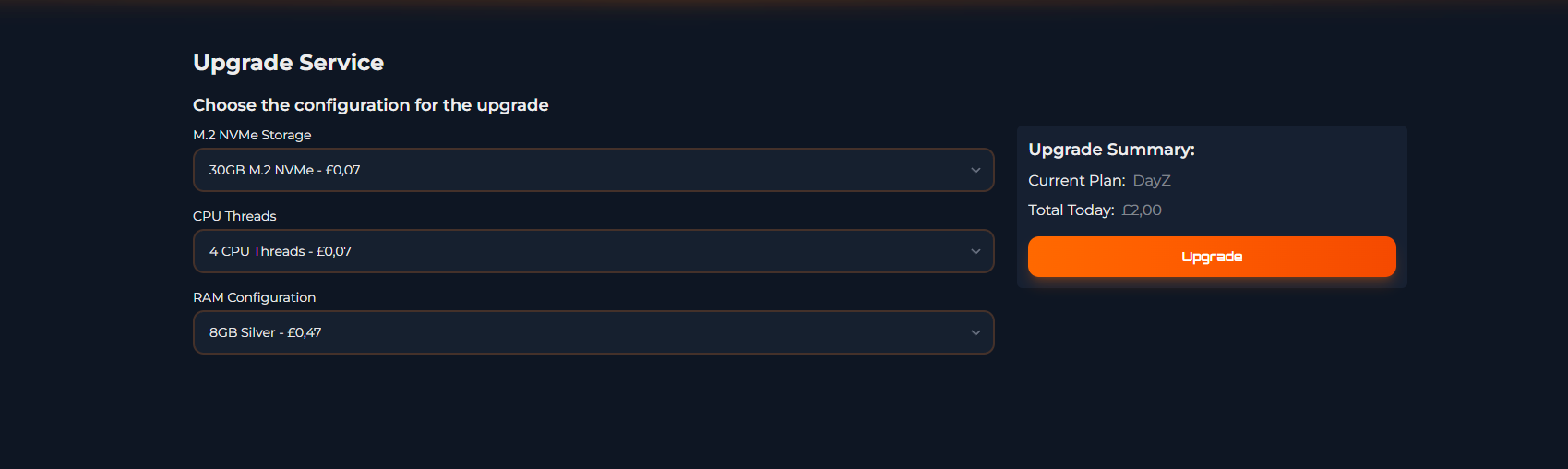
Upgrade configuration interface showing resource selection options and pricing
✅ Zero Downtime Upgrades: Most configuration changes can be applied with minimal or zero downtime. The system automatically handles resource allocation and seamlessly migrates your server to the new configuration while maintaining uptime.
Understanding Pricing Adjustments
Upgrade Pricing (Positive Values):
- Displayed as
£3.00 GBP,£5.00 GBP, etc. - Additional monthly cost for increased resources
- Prorated charge applied immediately
- Future invoices reflect new pricing
Downgrade Pricing (Negative Values):
- Displayed as
£-6.00 GBP,£-3.00 GBP, etc. - Monthly cost reduction for decreased resources
- Credit applied to your account
- Used automatically on next invoice
⚠️ Important: Pricing shown is the difference from your current plan, not the total cost. Remember that your total monthly cost includes RAM tier base price + CPU threads + NVMe storage. Always check the final total before confirming.
Step 4: Review & Complete the Change
Final Configuration Review
- Review all selected changes carefully
- Verify the pricing adjustments are correct
- Check your new total monthly cost
- Click the green Continue button
Payment Processing
For Upgrades:
- Review the prorated charge for your current billing period
- Complete payment using your stored payment method or add new payment details
- Wait for payment confirmation (usually instant for card payments)
For Downgrades:
- Review the credit amount being applied to your account
- Confirm the downgrade request
- No payment required - credit applied automatically
What Happens During the Change
Server Reconfiguration Process
Automated Process Timeline:
- Backup Creation (1-2 minutes) - Full server snapshot created
- Graceful Shutdown (30 seconds) - Server saves world and stops cleanly
- Resource Reallocation (2-3 minutes) - New RAM, CPU, storage provisioned
- File Migration (1-3 minutes) - Server data moved if needed (storage/location changes)
- Configuration Update (30 seconds) - Server parameters adjusted for new resources
- Server Restart (1-2 minutes) - DayZ server starts with new configuration
- Verification (30 seconds) - System confirms successful startup
Total Downtime: Typically 5-10 minutes depending on changes made
⚠️ Expected Downtime: Your server will be offline during the reconfiguration process. We recommend scheduling upgrades/downgrades during off-peak hours and notifying your players in advance.
After the Configuration Change
Verification Steps
1. Check Service Details:
- Return to Services → My Services
- Open your DayZ server service
- Verify the new resource allocation is displayed correctly
- Confirm server status shows as Active
2. Access Game Panel:
- Navigate to panel.ocnetworks.co.uk
- Open your server from the server list
- Check the Console tab for any startup errors
- Verify server resources in the stats panel
3. Test Server Connection:
- Launch DayZ or DayZ Launcher
- Search for your server in the server browser
- Connect using your server IP:
YOUR_SERVER_IP:2302 - Verify you can join successfully
Post-Upgrade Optimization
If You Upgraded RAM:
- Consider increasing max players if desired
- Monitor RAM usage to ensure headroom for player growth
- Install additional mods if desired
If You Upgraded CPU:
- Consider adding more complex server-side mods
- Monitor CPU usage during peak hours
- Potentially increase AI count or dynamics
If You Upgraded Storage:
- Install additional custom maps
- Enable more frequent automatic backups
- Consider storing multiple world saves
If You Changed Location:
- Update any third-party monitoring tools with new IP (if IP changed)
- Notify players if connection details changed
- Test latency from different regions
Performance Impact Reference
RAM Upgrade Benefits
- 6GB → 8GB Bronze → Silver: +20 player capacity, enhanced mod support, better performance
- 8GB → 12GB Silver → Gold: +30-50 player capacity, extensive mod support, large custom maps
CPU Upgrade Benefits
- 2 → 4 Threads: +100% performance improvement, better AI and zombie handling
- 4 → 6 Threads: +50% performance boost, supports complex economy and trader mods
- 6 → 8 Threads: +33% performance gain, ideal for 70-100 player servers with heavy mods
- 8 → 10 Threads: Maximum performance, optimal for large-scale modded communities
Storage Upgrade Benefits
- 50GB → 100GB: Double mod capacity, 2-3x map backups
- 100GB → 200GB: Extensive mod collections, full 30-day backup rotation
Billing & Payment Details
Prorated Billing Explained
Upgrade Example:
Downgrade Example: Symptoms: Server shows offline status 15+ minutes after upgrade Solutions: Symptoms: Billing panel shows old RAM/CPU values Solutions: Symptoms: Upgrade payment fails during checkout Solutions: Symptoms: Steam Workshop mods failing post-upgrade Solutions: ✅ Best Practice: Always create a manual backup before upgrading/downgrading. While automatic backups are created, having your own ensures additional peace of mind. 24/7 UK Support Channels: After upgrading/downgrading your DayZ server: Need Help? Contact our support team at support@ocnetworks.co.uk or join our Discord community for assistance.Current Plan: 12GB Gold - £18.99 + 8 CPU (£7.00) + 100GB (£4.00) = £29.99/month
New Plan: 8GB Silver - £13.99 + 6 CPU (£4.00) + 75GB (£2.00) = £19.99/month
Days Remaining in Cycle: 20 days (67% of month)
Account Credit: (£29.99 - £19.99) × 0.67 = £6.70
Next Invoice: £19.99 (minus £6.70 credit = £13.29
Next Invoice: £25.00 (minus £3.35 credit = £21.65)Payment Method Options
Troubleshooting Common Issues
Server Not Starting After Upgrade
Configuration Shows Old Values
Ctrl + Shift + R on Windows)Payment Declined
Mods Not Working After Upgrade
Support & Assistance
Getting Help
Service Level Agreement
Next Steps